 Burning Bridges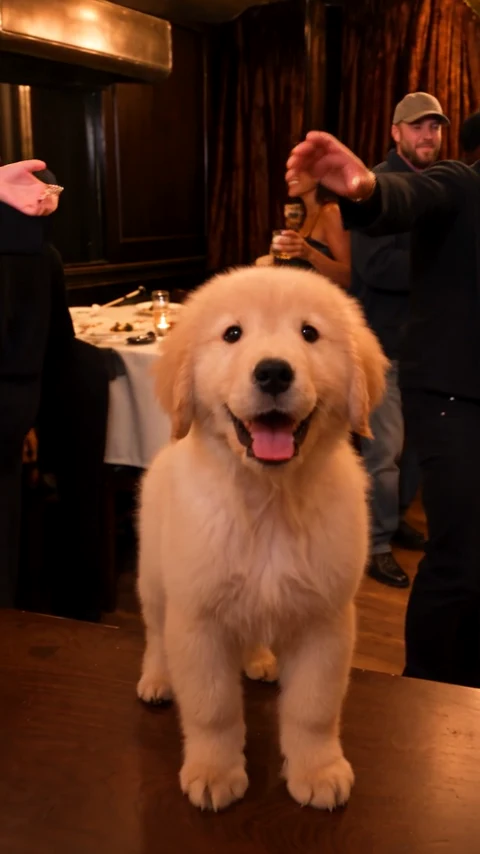
You only need one clear pet photo. The party scene, 15-second motion reference, and soundtrack workflow are already fixed, so the important choices are the source photo, aspect ratio, and output quality.
Before you start
- Use a JPG, PNG, or WEBP image no larger than 10 MB.
- Choose a photo with one pet, a visible face, and even lighting.
- Make sure you own the photo or have permission to use it.
- Expect small AI variations in fur, paws, or accessories.
Step 1: Choose a strong pet photo
Start with a sharp front or three-quarter view. Keep the eyes visible and avoid heavy filters. A simple background helps the model separate your pet from the source scene.
Step 2: Pick the format and quality
Choose the destination before you generate. The current product offers two aspect ratios and two quality levels.
| Choice | Best for | Generation cost |
|---|---|---|
| 16:9 | Landscape feeds and desktop | Depends on quality |
| 9:16 | Reels, Shorts, and Stories | Depends on quality |
| 480p | Standard output and first tests | 100 credits |
| 720p | Sharper output | 200 credits |
The Generate action shows the exact credit charge before you submit. Confirmed failed generations return the reserved credits.
Step 3: Generate the fixed party scene
Select Generate. If you are not signed in, Google sign-in opens first and the page keeps your selected photo and settings in memory. When generation is active, the uploaded photo becomes the lead character while the fixed scene and reference video guide the motion.
A result is usually ready in about five minutes, but that is an estimate rather than a countdown. Keep the page open to follow the task. When the provider reports a real percentage, the progress card shows it; otherwise the progress bar stays indeterminate.
Step 4: Review the full result
Watch all 15 seconds before downloading. Check the face, eyes, paws, accessories, and the way the pet sits inside the scene. If identity drifts, try a clearer or less tightly cropped source photo.
The finished result uses the fixed soundtrack mix. Custom lyrics and voice generation are not part of this product.
Quick troubleshooting
| Problem | What to try |
|---|---|
| Face changes too much | Use a brighter, sharper source with visible eyes. |
| Pet is poorly framed | Leave more space around the head and body. |
| Wrong shape for the destination | Choose 9:16 for vertical feeds or 16:9 for landscape. |
| Generation is unavailable | Check the live availability message before spending credits. |